

Turn on two-step sign-in for your THOST account
Protect your THOST account with a 6-digit code from an authenticator app, save your recovery codes, and manage remembered devices.
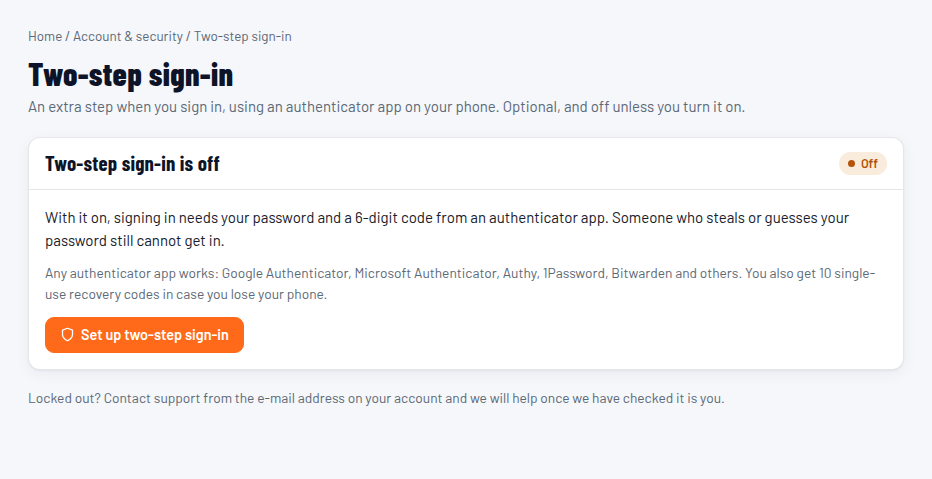
Your THOST account controls your websites, servers, domains and billing. Two-step sign-in adds a 6-digit code from an authenticator app on your phone, so someone who steals or guesses your password still cannot get in. It is optional and off until you turn it on.
Any authenticator app works: Google Authenticator, Microsoft Authenticator, Authy, 1Password, Bitwarden and others.
Steps
- Open Account & security. Sign in at billing.t-host.co.uk, open the menu under your name and choose Account & security, then Two-step sign-in (or go straight to /thostdash/security).
- Start the set-up. Under Two-step sign-in is off, press Set up two-step sign-in. A QR code appears. If your app cannot scan it, use Copy key and type the key into the app instead (time-based, 6 digits, every 30 seconds).
- Scan the QR code. In your authenticator app add a new account and scan the code. The app starts showing a new 6-digit code every 30 seconds.
- Confirm with a code. Type the current code from the app and press Turn on two-step sign-in.
- Save your recovery codes. You get 10 single-use recovery codes. Each one lets you sign in once if you lose your phone. Copy them or use Download as a text file, and keep them somewhere safe, such as a password manager, not only on the same phone.
From now on, signing in asks for your password and then a code from the app.
Remembered devices
When you sign in you can tick Don't ask again on this device for 30 days. That browser still needs your password, just not the code, for 30 days. The security page lists these devices. Changing your password or using a recovery code forgets them all, and Forget all remembered devices does it straight away.
Questions
I lost my phone. How do I get in?
Sign in with your password and use one of your recovery codes instead of an app code. Then turn two-step sign-in off and on again with your new phone, or make new recovery codes. If you have no recovery codes left, contact support from the email address on your account and we will help once we have checked it is you.
Can I make new recovery codes?
Yes. On the same page, under New recovery codes, press Make new codes. You get 10 new codes and the old ones stop working.
How do I turn it off?
On the security page, under Turn off two-step sign-in, press Turn off. Signing in then needs only your password again, and your recovery codes stop working.
Does this also protect my game panel and webmail?
It protects your THOST account (billing and the dashboard). Mailboxes and the game panel have their own passwords: use strong, unique ones for those too.
Did this not solve it? Open a support ticket and tell us which guide you followed. We answer every ticket ourselves.