

Set up an email plan and its DNS records
Order an email-only plan, confirm your domain, create mailboxes, add the MX, SPF, DKIM and DMARC records and connect your mail apps.
An email plan gives you mailboxes at your own domain without a website: Email 1 (1 mailbox), Email 5 (5 mailboxes) or Email 10 (10 mailboxes), each mailbox 10 GB. If you want a website too, choose web hosting instead: every web hosting plan already includes mailboxes.
Steps
- Order the plan. Choose Email 1, 5 or 10 on the email hosting page and enter a domain you own, or register a new domain in the same order. One domain per plan.
- Open the plan. In the dashboard choose Email, then your plan. The Set-up tab shows where things stand and every DNS record your domain needs.
- Confirm the domain is yours. Before we accept mail for a domain we check it belongs to you. Do one of these at the company that runs your domain's DNS: use our nameservers
ns1.t-host.co.ukandns2.t-host.co.uk, add the MX record shown, or add the TXT record shown (it changes nothing about where your mail goes). Press Check again, or wait: we also check by ourselves every few minutes. A domain you bought from us is confirmed already. - Create your mailboxes. On the Mailboxes tab press Create or manage mailboxes. Each mailbox gets a strong password, shown once. See create a mailbox for aliases, forwarders and out-of-office.
- Point your domain's mail here. On our nameservers every record is set for you. If your DNS is elsewhere, add each record in the DNS records table (copy each value exactly) and press Check the records again until each one shows OK. If the domain already receives mail somewhere else, change the MX record last, once your mailboxes exist.
- Add your mail apps. The Mail apps tab has the settings and steps for Outlook, Apple Mail, iPhone and iPad, Android and Thunderbird, or press Open webmail.
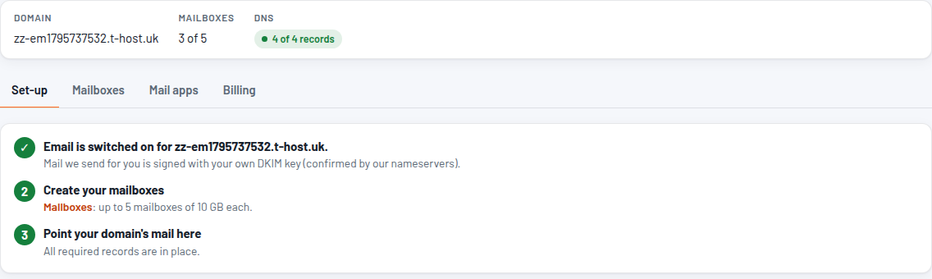
The DNS records
| Record | Name | What it does |
|---|---|---|
| MX | @ | Delivers mail for your domain to your mailboxes here (mail.t-host.co.uk, priority 10) |
| TXT (SPF) | @ | Says our servers may send mail as your domain |
| TXT (DKIM) | default._domainkey | The public half of the key we sign your mail with |
| TXT (DMARC) | _dmarc | Tells receivers how to treat mail that fails SPF and DKIM; starts in monitor-only mode (p=none) |
| SRV (optional) | _autodiscover._tcp, _imaps._tcp, _submission._tcp | Let Outlook and other mail apps fill in the settings themselves |
The exact values for your domain are on the Set-up tab. If your domain uses our nameservers and something is missing, Add the missing records for me adds it without changing anything that is already there.
Questions
I already have an SPF record.
Do not add a second one: a domain must have exactly one SPF record. Add a:mail.t-host.co.uk to your existing record instead.
How do I move my email from another provider?
Order, create your mailboxes, then change the MX record. Old messages can be copied across with your mail app: add both the old and the new account, then drag the folders over.
Can I keep my website where it is?
Yes. Only the mail records change; your website stays with Wix, Squarespace, Shopify or wherever it is now.
Is there a sending limit?
Each mailbox can send to 200 recipients an hour and 1,000 a day. Over the limit, your mail app is asked to try again later and nothing is lost. For newsletters, use a mailing-list service.
Can I add more mailboxes later?
Yes. Upgrade from Email 1 to Email 5 or Email 10 on the plan's Billing tab and pay only the difference for the rest of the period. Downgrades take effect at renewal.
Did this not solve it? Open a support ticket and tell us which guide you followed. We answer every ticket ourselves.